This tutorial describes how to use the MConfig software. MConfig is a software that can be used to configure controllers from the Climate family such as the MAVAV. MConfig is a free tool.
Download the MConfig software and install it. When you first open it, let the templates finish updating. This is an automatic process (internet connection required).
MCONFIG DOWNLOAD CLICK HERE
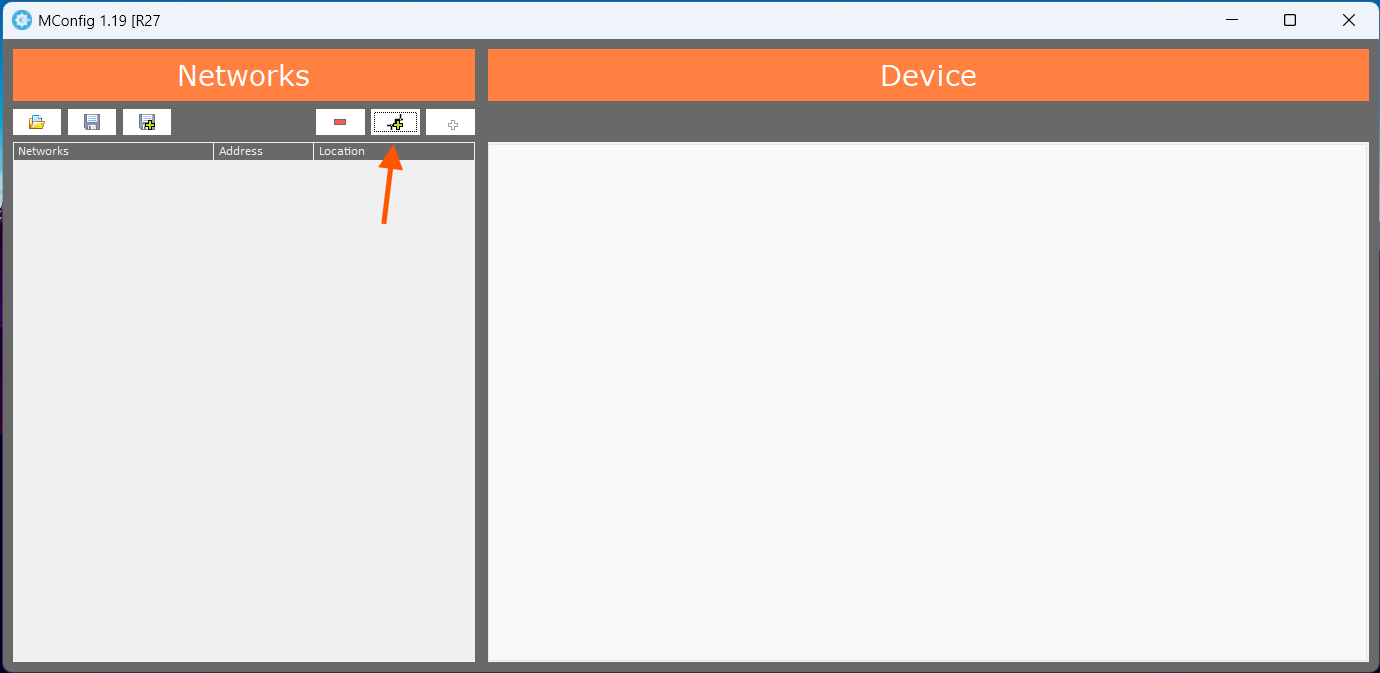
1. Click on the + (plus) with the network icon to create a network.
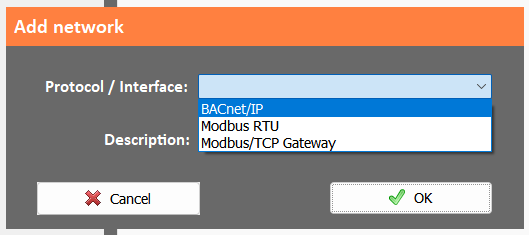
2. On the popup, select the network type and give it a description. This doesn't need to be the network from the building. It can be a local network that is dedicated to just configure the controllers.
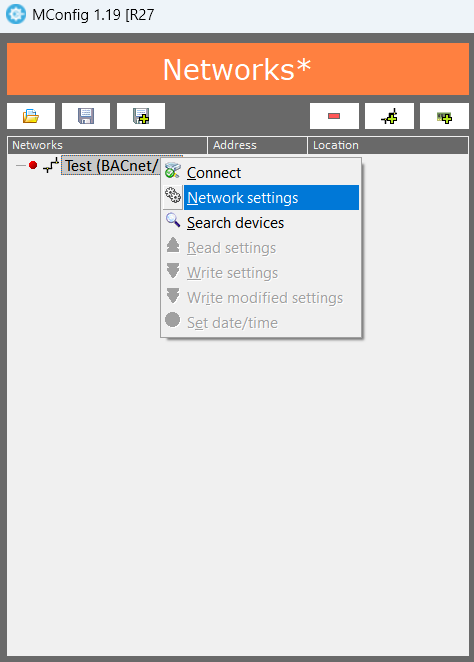
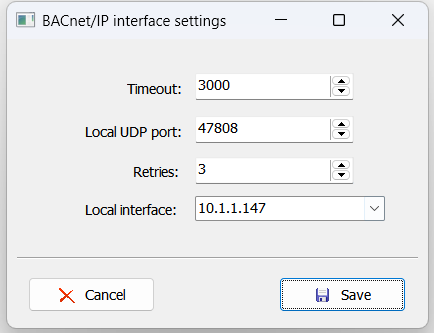
3. Right click the network and click on "Network settings" and configure it according to the controller's communication settings. Make sure to select the appropriate port and local interface on the popup and hit the floppy disk button to save. Do not manually input the interface.
 |  |
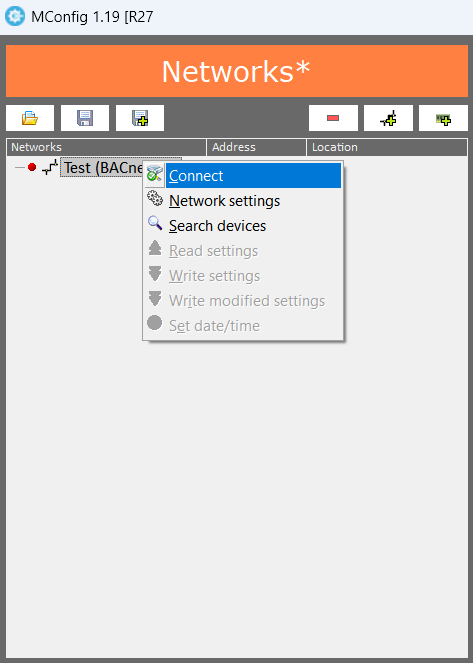
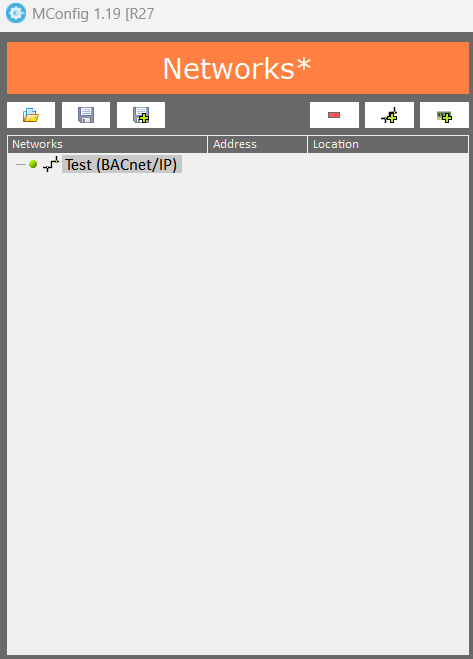
4. Right click the network and hit "Connect". If the circle turns from red to green, it means it has successfully connected.
 |  |
5. Once connected, there are two ways to add a controller to the network:
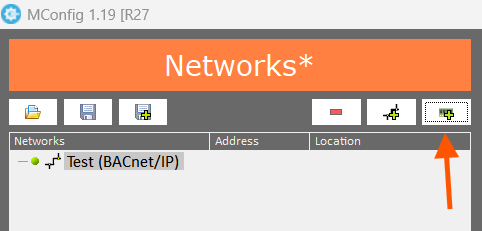
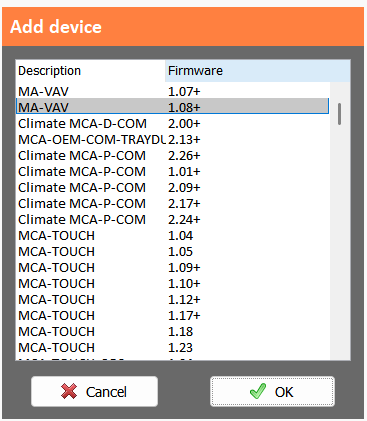
5.1. You can manually add it by hitting the + (plus) with the controller icon and search for the template. The template is firmware dependent, so make sure to select the appropriate one. Select it and hit OK.
 |  |
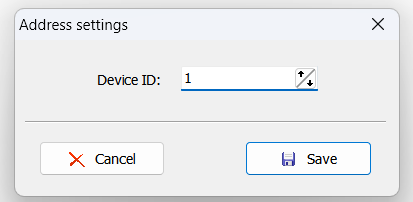
Once you hit OK, you need to know the controller's DEVICE ID (BACnet/IP only) and type it in and hit the floppy disk button.
NOTE: It cannot be the default device ID (4194303).
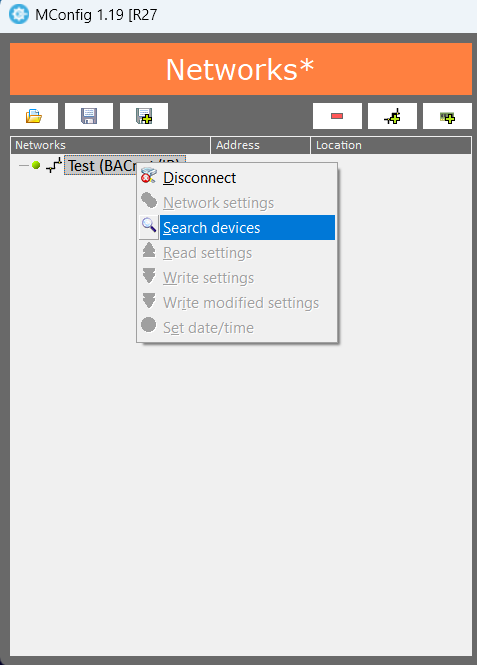
5.2. The other way (and the one recommended) is to hit "Search devices" and let the software search for the controller(s). Once a controller is found, mark the checkbox next to it and click "Import"
 | 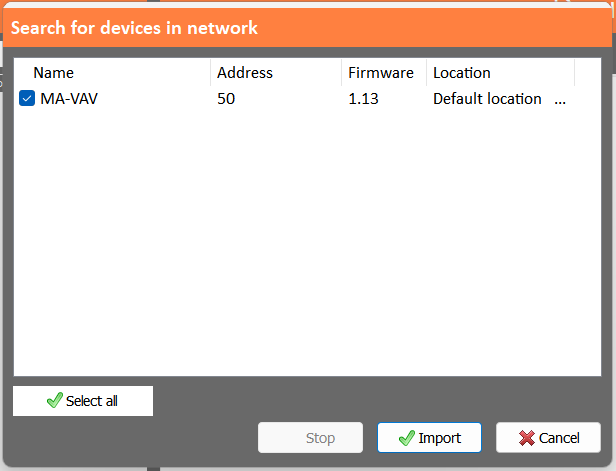 |
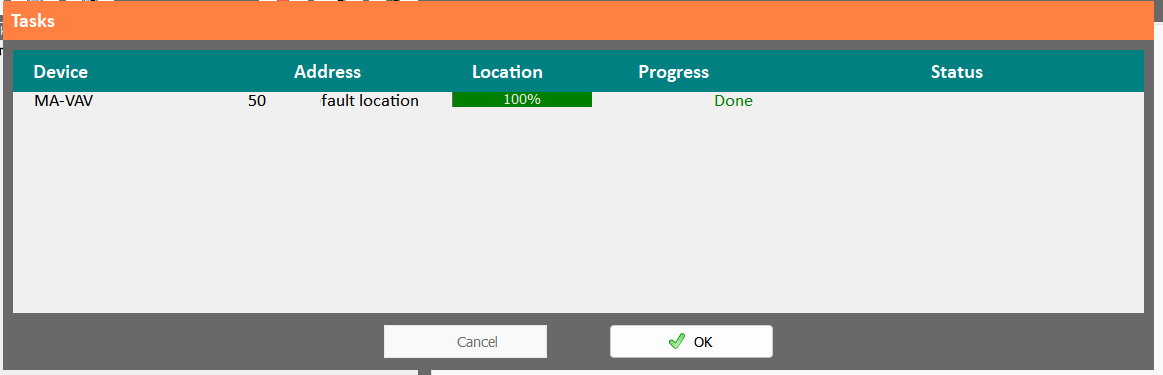
Hit "OK"on the popup and the controller(s) should show up under the network.
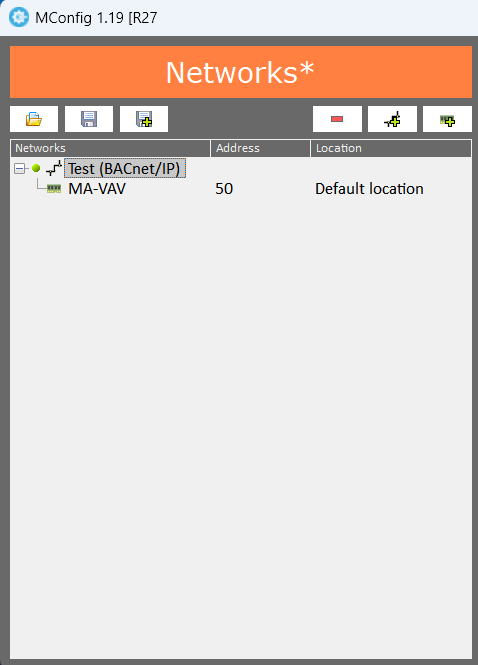
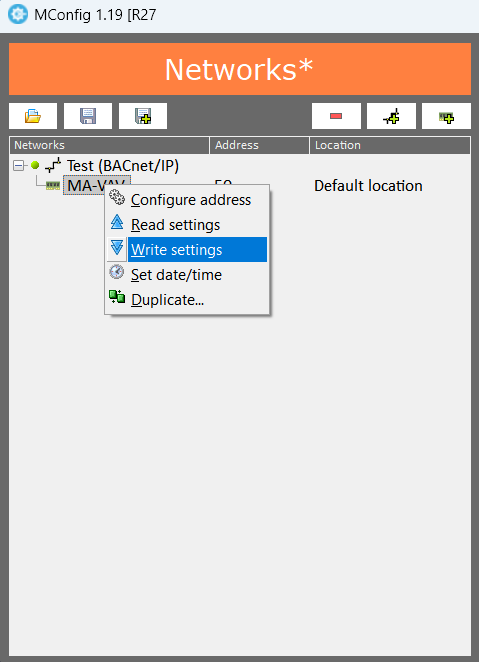
6. Once the controller is added to the software, you can configure it accordingly. Changing the settings on the MConfig software is the same as changing the settings on the web-server and vice-versa. Once configured, right click the controller under the network and hit "Write settings". Please Wait for the software to download it to the controller and you're all set.
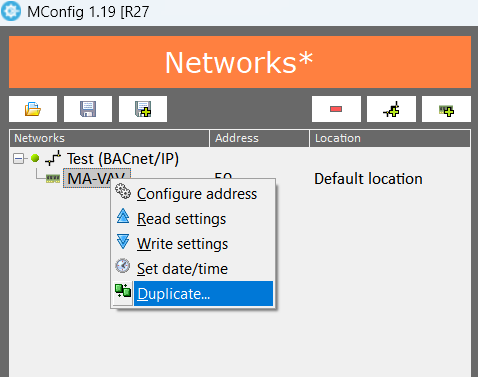
7. If you wish to duplicate a controller that's already configured, right click the controller and hit "Duplicate".
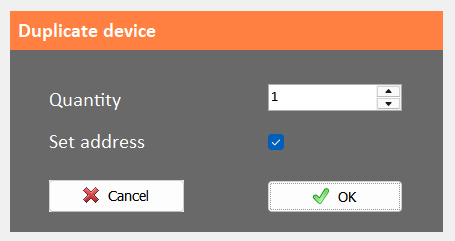
Under "Quantity" select how many duplicates you want and hit the checkbox "Set address" to duplicate it to an already existing DEVICE ID (BACnet/IP) or the slave's network address (Modbus).
 |  |
Once duplicated, right click the new controller and hit "Write settings".
Este artigo foi útil?
Que bom!
Obrigado pelo seu feedback
Desculpe! Não conseguimos ajudar você
Obrigado pelo seu feedback
Feedback enviado
Agradecemos seu esforço e tentaremos corrigir o artigo